Your canvases, in a browser tab.
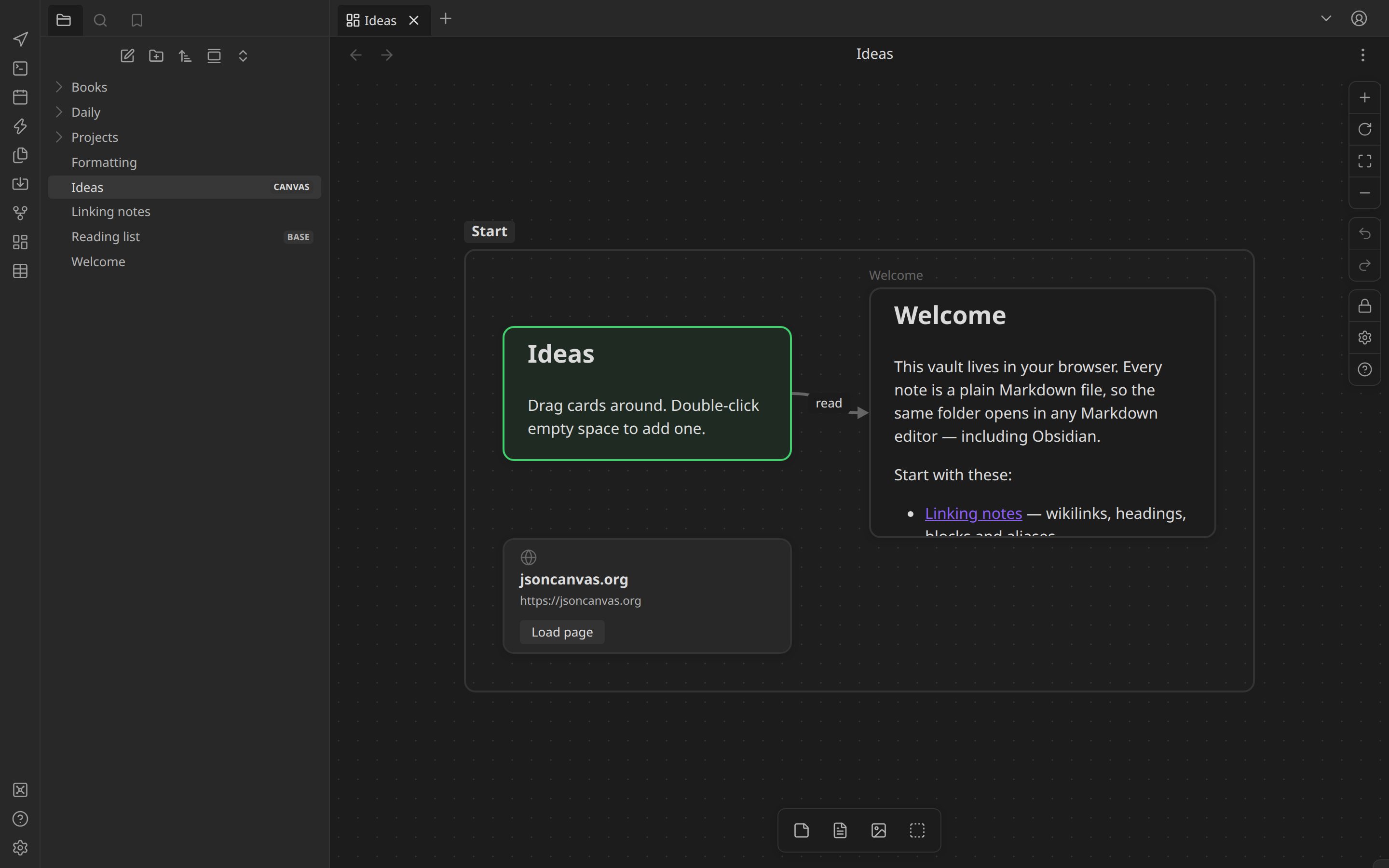
OpenMarkdown opens the .canvas files in your Obsidian vault and lets you keep working on them: cards, notes, web pages, groups and labelled connections on an endless board. It saves them as standard JSON Canvas, so Obsidian opens them too.
Free, no install, no account needed. An independent project, not affiliated with Obsidian or Dynalist Inc.
What you can put on a canvas
Everything a canvas holds in Obsidian, it holds here.
Drag a card from the toolbar, or double-click empty space to start typing.
Text cards
Write Markdown straight onto the board: headings, lists, links, tags and math render as they do in a note.
Note cards
Drop in any note from your vault. The card shows the note itself, and edits you make there save to the note.
Images and media
Add images and other files from the vault, so a moodboard or a reference wall sits beside your notes.
Web pages
Paste a link to make a web page card. The page loads only when you click it, so opening a canvas reaches no other site.
Groups
Frame cards in a labelled group, and jump straight to any group from the command palette.
Connections
Draw arrows between cards, label them, and set their direction, so a canvas can be a flowchart or a mind map.
Colours and alignment
Colour cards and lines, snap to the grid and to other cards, and align a selection in one step.
Undo, zoom and lock
Undo and redo every change, zoom to fit or to a selection, and lock a canvas as read-only while you present it.
Export and convert
Export the canvas as a PNG image, or turn a text card into a note of its own.
A canvas is a file you own.
Each canvas is a .canvas file in the open JSON Canvas format, saved in your vault folder next to your notes. Obsidian, OpenMarkdown and other apps that read JSON Canvas all open the same file.
Rename or move a note and every canvas that shows it follows along. Embed a whole canvas in a note with ![[Ideas.canvas]].
{
  "nodes": [
    { "id": "a1", "type": "text",
      "text": "# Ideas", "color": "4",
      "x": -320, "y": -160, "width": 300, "height": 140 },
    { "id": "a2", "type": "file",
      "file": "Welcome.md",
      "x": 60, "y": -200, "width": 360, "height": 260 }
  ],
  "edges": [
    { "id": "e1", "fromNode": "a1", "toNode": "a2",
      "label": "read" }
  ]
}
FAQ
Questions about Canvas.
- Can I open the canvases I made in Obsidian?
- Yes. Open your vault folder and click a .canvas file. Obsidian saves canvases in the open JSON Canvas format, and OpenMarkdown reads and writes the same format, so the same file opens in both.
- Will my canvas still open in Obsidian afterwards?
- Yes. OpenMarkdown saves the canvas back as a JSON Canvas file in the same place. Obsidian, or any other app that reads JSON Canvas, opens it as before.
- Do I need to install anything?
- No. Canvas is built into OpenMarkdown, which runs in a browser tab. Opening a real folder on disk needs Chrome, Edge, Brave, Arc or Opera; other browsers keep the vault in browser storage.
- Can I export a canvas as an image?
- Yes. The Export as image command saves the canvas as a PNG file.
- Is this made by Obsidian?
- No. OpenMarkdown is an independent, open-source project and is not affiliated with Obsidian or Dynalist Inc. It opens Obsidian vaults and reads the files Obsidian writes.
Get started
Open your vault and pick up where you left off.
Your canvases, notes and bases, in one browser tab. Free, and nothing to install.